Best 3D Printer for Small Business (2026): Production and Profit Picks
By Chris Avery, Publisher / Editor
The best 3D printer for a small business is not the fastest one on a spec sheet. It is the one that prints your products the same way every day, is quick to fix when a part wears out, and is easy to buy again when orders grow. This guide compares six current printers for Etsy sellers, custom product makers, prototyping services and small print farms, and explains fleet software, uptime, power and cost per part.
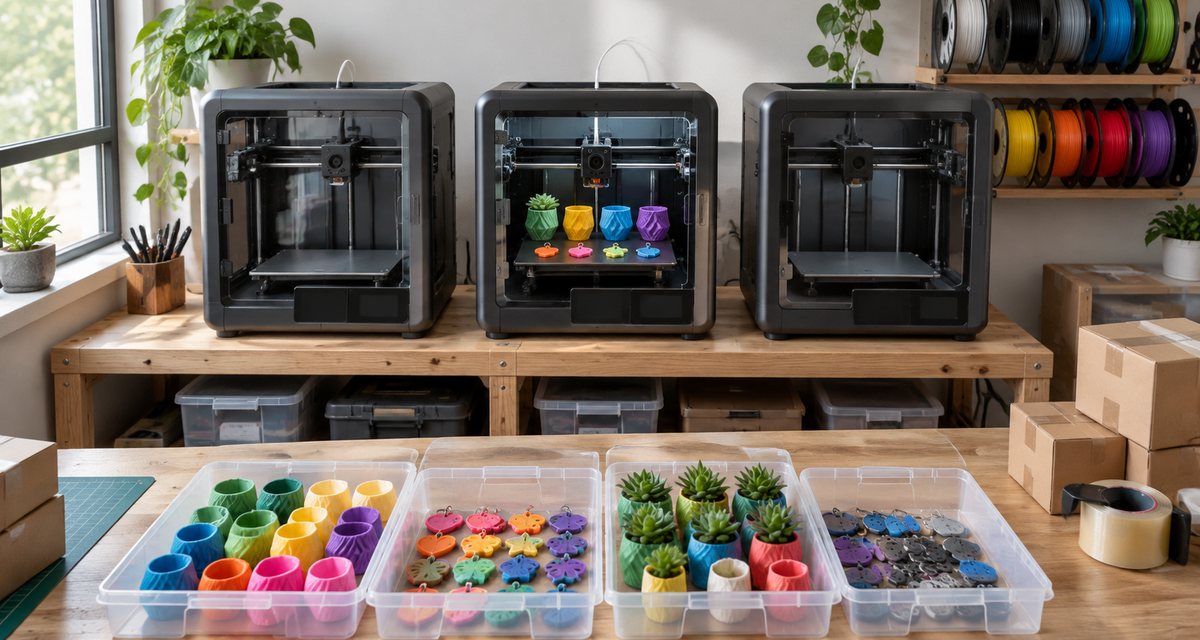
Quick Answer
The best 3D printer for most small businesses is the Bambu Lab P2S: enclosed, with a hardened steel nozzle for PLA, PETG, ABS and ASA products, and supported by Bambu Farm Manager when you add printers. Build a low-cost PLA print farm with the Bambu Lab A1, sell multicolor Etsy items with the Snapmaker U1, and print functional parts on the QIDI Plus5.
Amazon buttons open Amazon.com search results for that exact printer name in a new tab, not a single product page. Results can include Combo bundles, kits, older versions and accessories, so match the model name before you buy. Amazon affiliate links. As an Amazon Associate I earn from qualifying purchases.
TL;DR — Quick Summary
Best 3D Printers for Small Business — 2026 Picks
- 1🏆 Best overall / enclosed: Bambu Lab P2S — enclosed, hardened steel nozzle, Farm Manager support
- 2💵 Best budget / print farms: Bambu Lab A1 — about 95 W printing PLA, same fleet software
- 3🛍️ Best for Etsy sellers: Snapmaker U1 — four toolheads for multicolor with little purge waste
- 4🧪 Best for prototyping / repairs: Prusa CORE One+ — open source, Ethernet, spare parts, offline mode
- 5🔩 Best for functional parts: QIDI Plus5 — 65°C heated chamber, 370°C nozzle, 320 mm plate
- 6📦 Best for larger products: Creality K2 Plus Combo — 350 mm cube, 60°C chamber, LAN multi-printer control
What is Print Farm?
Print Farm A group of 3D printers run together as a small production line, usually the same model or brand, with jobs queued and monitored from one piece of fleet software. A small print farm might be three printers on a shelf; a large one can be hundreds.
🔥 Not running a business?
If you want one enclosed printer for home use, our enclosed 3D printer guide compares passive enclosures and heated chambers.
Small Business 3D Printers Compared
Specifications below come from each maker's spec sheet, product page or wiki, checked on November 20, 2026. Power figures are the makers' own measurements or ratings and are useful for comparing running costs. We do not publish prices because they change daily; the buttons open current Amazon listings.
Best overall / best enclosed
Bambu Lab P2S
Build volume: 256 × 256 × 256 mm
Design: CoreXY, enclosed (passive chamber)
Max temps: Nozzle 300°C (hardened steel), bed 110°C
Fleet and network: Bambu Farm Manager (local network); dual-band Wi-Fi, no Ethernet
Power: 200 W steady-state printing PLA
Read why we picked it →Best budget / small print farms
Bambu Lab A1
Build volume: 256 × 256 × 256 mm
Design: Bed-slinger, open frame
Max temps: Nozzle 300°C (stainless steel), bed 100°C
Fleet and network: Bambu Farm Manager (local network); Wi-Fi only
Power: About 95 W average printing PLA
Read why we picked it →Best for Etsy sellers
Snapmaker U1
Build volume: 270 × 270 × 270 mm
Design: CoreXY with four toolheads; side panels, door and rear cover included, top cover optional
Max temps: Nozzle 300°C (stainless steel), bed 100°C
Fleet and network: Snapmaker app; 2.4 GHz Wi-Fi
Power: About 118 W single-color PLA, 127 W four-color PLA
Read why we picked it →Best for prototyping / repairs
Prusa CORE One+
Build volume: 250 × 220 × 270 mm
Design: CoreXY, enclosed with active chamber temperature control (up to 55°C)
Max temps: Nozzle 290°C (400°C with optional HT upgrade), bed 120°C
Fleet and network: Prusa Connect (cloud) and PrusaLink (local); Ethernet and Wi-Fi
Power: 90 W printing PLA, 110 W printing ABS
Read why we picked it →Best for functional parts
QIDI Plus5
Build volume: 320 × 320 × 300 mm
Design: CoreXY, enclosed with a chamber heater (up to 65°C)
Max temps: Nozzle 370°C, bed 120°C
Fleet and network: 2.4/5 GHz Wi-Fi and Ethernet
Power: About 190 W printing PLA, 500 W printing ABS
Read why we picked it →Best for larger products
Creality K2 Plus Combo
Build volume: 350 × 350 × 350 mm
Design: CoreXY, enclosed with a chamber heater (up to 60°C)
Max temps: Nozzle 350°C, bed 120°C
Fleet and network: Creality Print 5.0 multi-printer control over LAN; Ethernet and dual-band Wi-Fi
Power: 1,200 W rated; steady-state figure not listed
Read why we picked it →Power sources: Bambu Lab's power consumption wiki (A1 average while printing PLA) and P2S spec sheet; Snapmaker's U1 FAQ; Prusa's CORE One+ technical parameters; QIDI's Plus5 specifications (25°C room); Creality's K2 Plus Combo product page (rated power only).
The Best 3D Printers for Small Business
Each pick below fits one kind of business. We have not lab-tested these printers or measured their failure rates: the specifications come from each manufacturer, and we say where a maker's own documentation, or a named outside review, points to a limit. We make no claims about profit or payback.
Bambu Lab P2S
Best for: Shops that sell a mix of PLA, PETG, ABS and ASA products and want one printer model they can add more of. Build volume: 256 × 256 × 256 mm. Fleet and network: Bambu Farm Manager (local network); dual-band Wi-Fi, no Ethernet.
For most small businesses the P2S is the safest printer to build around, because it covers the widest range of sellable products with the least fuss. The enclosure lets you take ABS and ASA orders, the factory hardened steel nozzle and extruder gear mean carbon- and glass-fiber filaments need no hotend swap, and a 1080p, 30 fps camera lets you check a job from your phone before a plate fails overnight. The bigger business reason is the fleet: Bambu Farm Manager, Bambu Lab's free local-network tool for queueing jobs and updating firmware across many printers, supports the P2S, and so does the cheaper A1 below. That means you can start with one P2S and add identical machines that share profiles, spare parts and habits.
Maker's specifications
- Bambu Lab: 256 × 256 × 256 mm build volume, enclosed CoreXY
- Hardened steel nozzle and extruder gear; 300°C nozzle; 110°C bed; 0.2 to 0.8 mm nozzles supported
- Built-in 1920 × 1080, 30 fps camera; runout and tangle sensors; power loss recovery
- Listed materials include PLA, PETG, ABS, ASA, TPU, PC, PA and fiber-filled blends
- Supported by Bambu Farm Manager from firmware V01.02.00.00
Watch out for
- No Ethernet port: Bambu lists dual-band Wi-Fi only, so plan a strong signal where the printers will sit
- Passive chamber with no heater, so large ABS parts, nylon and PC are better on the QIDI Plus5 below
- Multicolor needs the AMS 2 Pro, included only in the Combo version
Amazon buttons open Amazon.com search results for that exact printer name in a new tab, not a single product page. Results can include Combo bundles, kits, older versions and accessories, so match the model name before you buy. Amazon affiliate links. As an Amazon Associate I earn from qualifying purchases.
Details from the Bambu Lab P2S technical specifications and Bambu Farm Manager guide.
Bambu Lab A1
Best for: Sellers making PLA and PETG products that fit in 256 mm, and farms that want many low-power printers. Build volume: 256 × 256 × 256 mm. Fleet and network: Bambu Farm Manager (local network); Wi-Fi only.
Many products small 3D printing shops sell, such as planters, organizers, desk accessories, signs, cookie cutters and keychains, print in PLA or PETG and fit within 256 mm. For that work the A1 is the most economical printer slot here. Bambu Lab's own measurements put it at about 95 W on average while printing PLA, and it lists a 350 W maximum on 110 V power, the lowest of any printer in this guide apart from the Prusa, so several can share a room and a circuit with staggered heat-ups. It runs the same automatic calibration, Bambu Studio slicer and Farm Manager software as the P2S, so a row of A1s for PLA plus one P2S for ABS jobs runs from one screen.
Maker's specifications
- Bambu Lab: 256 × 256 × 256 mm build volume, steel and extruded aluminum chassis
- 300°C all-metal hotend, stainless steel nozzle, hardened steel extruder gears; 100°C bed
- Ideal materials: PLA, PETG, TPU and PVA
- Runout and tangle sensors, filament odometry, power loss recovery, built-in filament cutter
- Supported by Bambu Farm Manager from firmware V01.04.00.00; 350 W maximum at 110 V
Watch out for
- Bambu lists ABS, ASA, PC, PA and fiber-filled filaments as not recommended
- Bed-slinger: leave room front and back for the bed to travel, and keep tall parts well stuck down
- Multicolor uses the AMS lite (A1 Combo), which purges filament at every color change and adds waste to each part
Amazon buttons open Amazon.com search results for that exact printer name in a new tab, not a single product page. Results can include Combo bundles, kits, older versions and accessories, so match the model name before you buy. Amazon affiliate links. As an Amazon Associate I earn from qualifying purchases.
Details from the Bambu Lab A1 technical specifications and power consumption wiki.
Snapmaker U1
Best for: Shops selling multicolor and personalized products such as name signs, keychains, ornaments and toys. Build volume: 270 × 270 × 270 mm. Fleet and network: Snapmaker app; 2.4 GHz Wi-Fi.
Name signs, keychains and other personalized items often use several colors, and on a single-nozzle printer every color change means cutting the filament, loading the next one and purging the old color, which costs time and plastic on every part. The U1 avoids most of that with a tool changer: four separate toolheads, each loaded with its own filament, swapped automatically. Snapmaker explains that this removes the purge waste of single-nozzle color systems and leaves only a small prime tower, which it uses to clear filament that sat in a parked nozzle. For a seller making personalized items in three or four colors all day, less waste per part adds up. Tom's Hardware's best 3D printers list, updated in November 2026, names the U1 its best multicolor printer.
Maker's specifications
- Snapmaker: 270 × 270 × 270 mm build volume, four toolheads, up to 500 mm/s and 20,000 mm/s²
- 300°C stainless steel nozzles; 100°C bed with flexible PEI steel sheet
- Basic materials: PLA, PETG, TPU, PVA and PCTG; ABS, ASA, PA and PC need the optional top cover
- Automatic toolhead offset, flow and input shaping calibration; RFID filament recognition
- 2 MP chamber camera; runout, air-printing and build plate obstruction detection; 400 W maximum at 110 V
Watch out for
- Not fully enclosed by default: the top cover is sold separately, and Snapmaker listed it as a pre-order
- Four colors per print; the K2 Plus Combo below can expand to 16 with extra CFS units
- Snapmaker says the RFID filament system is proprietary, and it asks for the toolhead contacts to be cleaned every 100,000 swaps
Amazon buttons open Amazon.com search results for that exact printer name in a new tab, not a single product page. Results can include Combo bundles, kits, older versions and accessories, so match the model name before you buy. Amazon affiliate links. As an Amazon Associate I earn from qualifying purchases.
Details from the Snapmaker U1 specifications and Snapmaker U1 FAQ.
Prusa CORE One+
Best for: Prototyping and client work where uptime, repairs, wired networking or offline operation matter. Build volume: 250 × 220 × 270 mm. Fleet and network: Prusa Connect (cloud) and PrusaLink (local); Ethernet and Wi-Fi.
A prototyping service lives or dies on turnaround, and turnaround depends on how fast you can fix a printer when something wears out. Prusa designs for that: it says nothing is glued, everything comes apart with a screwdriver, and it keeps spare parts in stock for years after a model's release. Its firmware, slicer and CAD files are open source. For client work, Prusa notes the printer can be set up and run without ever going online, including firmware updates, and it has an Ethernet port as well as Wi-Fi. When you do want remote control, Prusa Connect manages whole print farms, tracking each printer and showing production statistics, while PrusaLink works only on your local network. Prusa lists the lowest PLA power draw in this guide.
Maker's specifications
- Prusa: 250 × 220 × 270 mm build volume, enclosed CoreXY, maximum chamber temperature 55°C
- 290°C nozzle (400°C with the optional HT upgrade); 120°C bed; quick-swap nozzles
- Supported materials: PLA, PETG, Flex, PVA, PC, PP, CPE and PVB; advanced: ABS, ASA, HIPS and PA
- Load-cell first-layer calibration, two filament sensors, input shaper
- Ethernet and Wi-Fi; Prusa Connect and PrusaLink built in; MMU3 (5 filaments) or INDX (up to 8) upgrades
Watch out for
- Smallest bed here at 250 × 220 mm, so fewer parts fit per plate
- Ships with a brass nozzle: carbon- and glass-fiber filaments need a hardened nozzle
- The camera and HEPA filter are optional add-ons, and Amazon results can include the older CORE One and the kit
Amazon buttons open Amazon.com search results for that exact printer name in a new tab, not a single product page. Results can include Combo bundles, kits, older versions and accessories, so match the model name before you buy. Amazon affiliate links. As an Amazon Associate I earn from qualifying purchases.
Details from the Prusa CORE One+ product page and Prusa Connect knowledge base.
QIDI Plus5
Best for: Shops printing jigs, fixtures, brackets and replacement parts in ABS, ASA, nylon, PC and fiber blends. Build volume: 320 × 320 × 300 mm. Fleet and network: 2.4/5 GHz Wi-Fi and Ethernet.
Functional parts for customers, such as machine guards, jigs, brackets and replacement parts, are usually printed in materials that shrink and warp as they cool. That needs a chamber that is actively kept warm, not just a box. The QIDI Plus5 has a third-generation chamber heater rated to 65°C and controlled separately from the bed, a 370°C nozzle with hardened steel extruder gears, and a 320 × 320 mm plate that fits a batch of mid-size parts. QIDI also publishes steady-state power for PLA and ABS, which few makers do and which makes quoting ABS jobs easier. It is our small-business pick in the enclosed printer guide, and the reasoning is the same here.
Maker's specifications
- QIDI: 320 × 320 × 300 mm build volume, CoreXY, up to 600 mm/s
- Chamber heating up to 65°C, independent of the bed; 370°C nozzle; 120°C bed
- Supported filaments: PLA, ABS, ASA, PETG, TPU, PA, PC and carbon- or glass-fiber blends
- 3-in-1 air filter: G3 pre-filter, H12 HEPA and coconut shell activated carbon
- Dual-band Wi-Fi and Ethernet; QIDI lists steady-state draw of 190 W (PLA) and 500 W (ABS) at 25°C
Watch out for
- Multicolor needs the optional QIDI Box; Tom's Hardware's August 2026 review reported problems with it
- Rated power is 150 W plus 550 W for the chamber heater and 500 W for the bed; check the circuit
- Heavy at 29 kg, and QIDI sells region-specific 110 V and 220–240 V versions
Amazon buttons open Amazon.com search results for that exact printer name in a new tab, not a single product page. Results can include Combo bundles, kits, older versions and accessories, so match the model name before you buy. Amazon affiliate links. As an Amazon Associate I earn from qualifying purchases.
Details from the QIDI Plus5 technical specifications.
Creality K2 Plus Combo
Best for: Products bigger than 256 mm, such as lamps, helmets, large planters and display pieces, or big batch plates. Build volume: 350 × 350 × 350 mm. Fleet and network: Creality Print 5.0 multi-printer control over LAN; Ethernet and dual-band Wi-Fi.
When your product does not fit a 256 mm printer, or you want to print far more pieces per plate, the K2 Plus Combo is the business pick. Its 350 mm cube holds about 2.5 times the volume of the P2S, inside an enclosure with a chamber heater rated to 60°C, so large ABS and ASA items are realistic. The Combo includes a CFS unit for four colors, expandable to 16 with four units. For running more than one, Creality lists multi-printer control over your local network in Creality Print 5.0, plus Ethernet and dual-band Wi-Fi, which the P2S lacks. If you need 400 mm or more, our large printer guide covers bigger machines.
Maker's specifications
- Creality: 350 × 350 × 350 mm build volume, up to 600 mm/s and 30,000 mm/s²
- Chamber heating to 60°C; 350°C nozzle; 120°C bed
- Combo includes one CFS (4 spools); up to four CFS units for 16 colors
- Multi-printer control via LAN in Creality Print 5.0; Ethernet and 2.4/5 GHz Wi-Fi
- Dual AI cameras for monitoring and flow calibration; 1,200 W rated power
Watch out for
- Creality: on 110 V with the room below about 15°C, the chamber may not reach 60°C
- Big and heavy: 35 kg and 916 mm tall with the CFS on top
- Filter type is not detailed in the specs we checked, so plan ventilation as if there were none
Amazon buttons open Amazon.com search results for that exact printer name in a new tab, not a single product page. Results can include Combo bundles, kits, older versions and accessories, so match the model name before you buy. Amazon affiliate links. As an Amazon Associate I earn from qualifying purchases.
Details from the Creality K2 Plus Combo product page and chamber temperature guide.
Also worth knowing
- Bambu Lab A1 Combo: the A1 with the four-spool AMS lite. It is the cheaper way into multicolor products than the U1, but every color change purges filament, so it suits items with few color changes.
- Creality Ender-5 Max: a 400 mm open-frame printer with a status light and multi-printer control, our small-business pick in the large 3D printer guide. Consider it for big PLA products that do not need an enclosure.
- Resin printers: jewelry masters, dental models and highly detailed miniatures are usually printed in resin, which needs gloves, washing, curing and ventilation. This guide covers filament (FDM) printers only.
Small-Business Workflow: From Order to Shipped Part
The printer is only one step. Much of the time and money in a small 3D printing business goes into the steps around it, and a printer that fits those steps well saves more than a faster one.
- 1Choose products that print well: Products that print in one piece, without supports, in a few hours are the easiest to make the same way every time. Every support you remove and every hour on the bed is cost you cannot charge for twice.
- 2Check the model license: Many free models forbid commercial use. Sell your own designs, or buy a commercial license from the designer before you list a product.
- 3Save one tested profile per product: Lock the slicer settings, filament and plate layout that produced a good part, and name the file after the product. Reprints then come out the same every time.
- 4Batch the plate: Fill the plate with as many copies as fit with safe spacing. One long job with ten parts needs one start, one first layer and one removal instead of ten.
- 5Queue jobs across printers: Send work from fleet software instead of walking files around on USB drives. It shows which printer is free and which one needs a plate cleared.
- 6Harvest, check and pack: Remove parts as soon as a plate cools, check them against a good sample, clean the plate and start the next job. Idle printers are the hidden cost of a farm.
Reliability, Uptime and Spare Parts
When a hobby printer breaks, you wait. When a business printer breaks, orders wait. Repeatable results and fast repairs matter more than any single feature.
Buy printers with documented spare parts
Before you buy, find the maker's spare parts page and check that nozzles, hotends, build plates, belts and fans are listed and in stock. Prusa says it stocks parts for years after a model's release.
Keep a wear kit on the shelf
Spare nozzles, a spare build plate per printer and a spare hotend for your main model turn a failure into a short swap instead of days of waiting.
Use the failure detection you paid for
Runout sensors, tangle detection, cameras and power loss recovery are listed on every printer here. Turn them on and check the camera before leaving an overnight job.
Follow the maintenance schedule
Clean build plates, check belts and lubricate rails as each maker instructs. Our lubricant guide covers what each maker says about grease and oil.
Run identical printers
Two of the same model are easier to keep running than two different ones: the same profiles, the same parts and the same fixes.
Be skeptical of uptime numbers
No maker publishes independent reliability statistics for these printers, and we have not measured failure rates. Judge reliability by documentation, parts availability and your own early test prints.
Throughput and Print Capacity
Throughput is how many sellable parts leave the shop per day, not the top speed on the box. It depends on how many parts fit per plate, how fast the hotend can melt plastic, how quickly you clear plates, and how many printers you run.
Parts per plate beats top speed
A 350 mm plate can hold far more copies than a 256 mm plate. For small products, fitting more per plate often saves more time than a faster printer.
Flow sets the real pace
Headline speeds of 500 or 600 mm/s apply to travel and thin walls. How much plastic the hotend can melt decides print time for solid parts.
Use bigger nozzles for big parts
A 0.6 or 0.8 mm nozzle with thicker layers shortens large prints considerably. The P2S and A1 both list optional 0.6 and 0.8 mm nozzles.
More printers spread the risk
Three printers running the same job can finish an order as fast as one very fast printer, and keep shipping if one of them is down.
A simple test before you buy: load your best-selling product into the free slicer for the printer you are considering, fill a plate, and note the estimated time and the number of parts. Divide one by the other and compare printers on time per part, not on speed.
Managing Several Printers
Once you run more than two printers, walking files around on USB drives wastes time. Each maker here has its own way of managing several printers, and the differences matter for your network and your files.
Bambu Farm Manager
Free and local: a server app on a Windows 10 or later x86 PC controls printers on your network, with job queues, batch firmware updates and multiple users. Bambu lists the P2S and A1 as supported, with printers joining over 2.4 GHz Wi-Fi. Printers added to it stop talking to Bambu's cloud, so the Bambu Handy app cannot be used with them at the same time. Bambu Lab guide
Prusa Connect and PrusaLink
Prusa Connect is a cloud service that Prusa says can control entire print farms, tracking each printer and providing production statistics. PrusaLink runs on the printer and works only on your local network. The CORE One+ has both built in, over Wi-Fi or Ethernet. Prusa knowledge base
Creality Print
Creality lists multi-printer control over your local network in Creality Print 5.0 for the K2 Plus, which also has an Ethernet port and dual-band Wi-Fi. Creality product page
- Standardize where you can: Fleet tools work best within one maker. Mixing brands means several apps, several slicers and several sets of spare parts.
- Plan the network: Printers that only have Wi-Fi, such as the P2S and A1, need a reliable signal where they sit. Ethernet, on the Prusa, QIDI and Creality picks, avoids the problem.
- Think about client files: If customers send you confidential designs, prefer local-only tools such as Bambu Farm Manager or PrusaLink, or a printer that can run offline.
- Label everything: Number each printer and each build plate, and note which filament is loaded. It saves mistakes when several jobs run at once.
Workspace, Power and Ventilation
Three printers on a kitchen table quickly become a workshop. Plan the space, the electrical load and the air before you add machines.
Power figures from the makers
- Bambu Lab P2S: 200 W steady-state printing PLA
- Bambu Lab A1: About 95 W average printing PLA
- Snapmaker U1: About 118 W single-color PLA, 127 W four-color PLA
- Prusa CORE One+: 90 W printing PLA, 110 W printing ABS
- QIDI Plus5: About 190 W printing PLA, 500 W printing ABS
- Creality K2 Plus Combo: 1,200 W rated; steady-state figure not listed
Average and steady-state figures are what a printer draws while printing; heat-up draws much more. Bambu lists maximums of 350 W (A1) and 1,000 W (P2S) on 110 V, Snapmaker 400 W for the U1, and Prusa a 240 W power supply for the CORE One+. Bambu Lab power wiki
- Add up the maximum power: Add the maximum figures for every printer on a circuit, stagger heat-ups so they do not all peak together, and ask an electrician if you plan more than a few printers on one circuit.
- Ventilate for ABS and ASA: Enclosures and filters reduce some emissions but do not make printing emission-free. Plan room ventilation, especially if people work nearby.
- Use solid furniture: Fast printers shake light tables. The picks here weigh from 8.3 kg (A1) to 35 kg (K2 Plus Combo).
- Keep the room steady: Drafts and cold rooms cause warping and chamber problems; Creality notes the K2 Plus chamber may not reach 60°C in a room below about 15°C on 110 V.
Consumables and Cost per Part
Price every product from its real cost, not from a guess. These are the parts of the cost of one printed item; the figures depend on your products, your filament and your electricity rate, so we do not publish averages.
Filament
Weigh the part or read the grams from the slicer, then multiply by your cost per gram. Include brims, supports, prime towers and purge waste.
Electricity
Multiply print hours by the printer's average power, then by your electricity rate. A printer averaging 200 W uses 0.2 kWh per hour of printing.
Wear parts
Spread the cost of nozzles, build plates, PTFE tubes and belts over the print hours they last.
Failures
Add an allowance for failed or rejected prints based on your own records, not on someone else's figure.
Labor
Count the minutes spent slicing, clearing plates, checking and packing. On small items it can be the biggest cost.
Platform and shipping fees
Marketplace fees, payment processing and packaging are part of the cost of each sale, not of the print.
Two printer choices change this math directly. Multicolor on a single-nozzle printer adds purge waste to every part, which a tool changer like the U1 largely avoids. And a printer that draws less power while printing, such as the A1 or the CORE One+, costs less to run per hour, which matters most on long PLA jobs.
Scaling From One Printer to Several
- 1Start with one printer and prove the product: Sell a few batches before you buy a second machine. You learn which products sell and how long each one really takes.
- 2Add the same model: A second identical printer doubles capacity without new profiles, new parts or new habits.
- 3Add fleet software at three or more: Queueing and monitoring from one screen becomes worth setting up once you can no longer watch every printer from your chair.
- 4Add a specialist only when orders demand it: Bring in an enclosed or heated-chamber printer when customers ask for ABS, nylon or bigger parts, not before.
- 5Grow the room with the fleet: Shelving, power, ventilation and storage for filament and finished stock all need to grow alongside the printers.
💧 Running printers all day?
Damp filament fails slowly over long jobs. Our dryer guide covers the dryers that keep spools printable.
Buying Guide: How to Choose a 3D Printer for a Small Business
- 1Start from your best-selling product: Its size, material and colors decide the printer. Check that it fits the bed with room for a full plate.
- 2Match the enclosure to your materials: PLA and PETG products: an open printer is fine. ABS and ASA: enclosed. Nylon, PC and large ABS parts: a heated chamber.
- 3Check the fleet software: Find out how the maker handles several printers, whether it needs the cloud, and whether your network suits it.
- 4Check spare parts before you buy: Look for nozzles, hotends, build plates and belts on the maker's store, and keep a spare kit.
- 5Compare time per part, not top speed: Slice your real product on each candidate and compare the estimated time per part.
- 6Count the running costs: Use the makers' power figures and your own filament and labor costs to price each product.
- 7Plan for a second identical printer: Choose a model you would happily buy again, from a maker likely to keep selling it and its parts.
Common mistakes
- Buying a different printer every time: Mixed fleets mean more profiles, more parts and more things to learn.
- Ignoring model licenses: Selling prints of a model whose license forbids commercial use can get listings removed.
- Pricing from filament cost alone: Labor, failures, electricity and fees can add up to more than the plastic.
- Buying for top speed: Plate size, flow and how quickly you clear plates decide output.
Frequently Asked Questions
What is the best 3D printer for a small business?
For most small businesses, the Bambu Lab P2S: an enclosed printer with a hardened steel nozzle that handles PLA, PETG, ABS and ASA products and works with Bambu Farm Manager when you add more printers. Choose the Bambu Lab A1 for a low-cost PLA print farm, the Snapmaker U1 for multicolor Etsy products and the QIDI Plus5 for functional parts.
How many 3D printers do I need to start a 3D printing business?
One is enough to test whether your products sell. Add a second printer of the same model once orders regularly wait for printer time, because two identical printers share slicer profiles and spare parts and keep you shipping if one is down. Adding one identical printer at a time keeps the risk low.
Is a 3D printing business profitable?
It can be, but there is no reliable typical figure, because profit depends on the product, the selling price, platform fees, failed prints and your own time. Before buying more printers, work out the full cost of each part, including filament, electricity, wear parts, failures and labor, and compare it with what customers already pay.
Should a small business buy an enclosed 3D printer?
Buy an enclosed printer if you will print ABS, ASA, nylon or PC, or if the printer shares a room with people, customers or drafts. For PLA and PETG products only, an open printer such as the Bambu Lab A1 is cheaper to run and works well.
Which 3D printer is best for Etsy sellers?
For multicolor and personalized items, the Snapmaker U1, because its four toolheads switch colors without the purge waste of a single-nozzle color system. For single-color PLA products, a few Bambu Lab A1 printers are the economical choice.
How do you manage multiple 3D printers?
Use the maker's fleet software: Bambu Farm Manager for Bambu Lab printers, Prusa Connect or PrusaLink for Prusa printers and Creality Print for Creality printers. Standardize on one model or one maker where you can, keep identical spare parts and build plates on hand, and label each printer.
Can I sell 3D prints of models I downloaded?
Only if the model's license allows commercial use. Many free models are shared under licenses that forbid selling prints, so check each model's license, buy a commercial license from the designer, or sell your own designs.
How do I calculate the cost of a 3D printed part?
Add the filament used (grams multiplied by your cost per gram), electricity (print hours multiplied by the printer's average power and your rate), a share of wear parts such as nozzles and build plates, an allowance for failed prints, and your time for preparation, removal and packing.
The Bottom Line
If you are building a 3D printing business around one model, start with the Bambu Lab P2S: it covers the widest range of sellable materials, works with free fleet software and is easy to buy again. If your products are PLA and fit in 256 mm, a row of Bambu Lab A1 printers is the cheapest capacity to run. Selling multicolor personalized items on Etsy? The Snapmaker U1 keeps purge waste down.
For prototyping services that value repairs, Ethernet and offline operation, choose the Prusa CORE One+. For functional parts in engineering materials, the QIDI Plus5. For products bigger than 256 mm, the Creality K2 Plus Combo. Whatever you choose, price every product from its real cost and add identical printers as orders grow.
Start With These
One all-rounder, one budget farm printer, one for multicolor products.
Amazon buttons open Amazon.com search results for that exact printer name in a new tab, not a single product page. Results can include Combo bundles, kits, older versions and accessories, so match the model name before you buy. Amazon affiliate links. As an Amazon Associate I earn from qualifying purchases.
How We Chose These Printers
We started from the kinds of small businesses that buy desktop printers: general product sellers, low-cost PLA print farms, Etsy sellers with multicolor items, prototyping services, functional-part makers and shops with larger products. For each, we picked a current filament printer whose maker documents what that business needs, such as fleet software, materials, networking, spare parts and power use. On November 20, 2026 we confirmed that each printer is listed on Amazon.com under the exact name the button searches for.
Specifications, power figures and limits come from the manufacturers' spec sheets, product pages and wikis, not from our own testing. Where we mention an outside source, we name it. We do not claim to have tested these printers, and we do not publish prices, star ratings, reliability statistics or profit estimates.
Sources
- Bambu Lab, P2S technical specifications
- Bambu Lab, A1 technical specifications
- Bambu Lab Wiki, printer and AMS power parameters
- Bambu Lab Wiki, Bambu Farm Manager quick start guide
- Bambu Lab Wiki, Bambu Farm Manager FAQ
- Snapmaker, U1 specifications
- Snapmaker Wiki, U1 FAQ
- Prusa, CORE One+ product page and technical parameters
- Prusa Knowledge Base, Prusa Connect and PrusaLink explained
- QIDI, Plus5 technical specifications
- Tom's Hardware, QIDI Plus5 review (August 2026)
- Creality, K2 Plus Combo product page
- Creality Wiki, K2 Pro and K2 Plus chamber temperature guide
- Tom's Hardware, The Best 3D Printers (updated November 2026)
Affiliate Disclosure: This post contains affiliate links. If you purchase through these links, we may earn a small commission at no extra cost to you. We only recommend products we stand behind. See our full disclosure for details.
As an Amazon Associate I earn from qualifying purchases.